
Code Collaboration with Version Control
Sara Cope
Welcome!
What we will cover in this workshop
- Short intro to the command line
- What is version control and why should we care?
- Basics of Git: the essential commands
- GitHub (or, a little Git between friends)
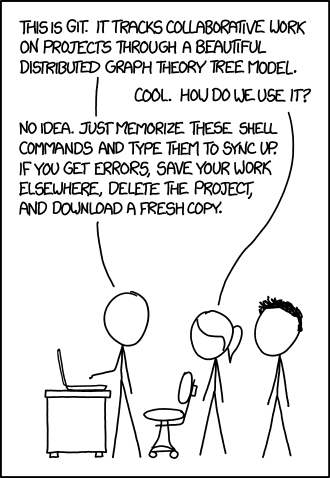
If it seems hard, it's because it is
A Google engineer, speaking to an audience of Google engineers, once described the newly invented Git as:
"a version control system which is expressly designed to make you feel less intelligent" (source)
... but it gets easier with practice!
Command Line Basics
First let's clarify a few terms
- Console: This is the system as a whole. This is both the command line as well as the output from previous commands.
- Command Line: This is the actual line in a console where you type your command.
- Prompt: This is the beginning of the command line. It usually provides some contextual information like who you are, where you are and other useful info. It typically ends in a $
- Terminal: This is the actual interface to the console.
Running a Command
Nearly all commands follow a common pattern with 3 main parts.
$ ls -l ~- Program (verb)
- Options (adverb)
- Arguments (object)
Common commands
cd: change directoryls: list all the filesmkdir: make directoryrmdir: remove/delete directorytouch: create a filerm: remove a filepwd: find out the file path of current directory you are in, from the root
terminology note: directory === folder
cd (changing directories)
A little further explanation...
cd folder_name: moves down into the folder
example: cd my_kittens
cd path_name: moves down into the last folder listed
example: cd my_kittens/fuzzball/favorite_foods
cd ..: moves up one folder levelcd ../../../: moves up three folderlevelscd ~: moves to your home directory, no matter where you are
Watch me!
Goal: Create a folder named kittens_project on my desktop
Exercise - Do it on your own!
- Use the command line to navigate to your desktop folder
- Create a folder called kittens_project
- Move inside of your kittens_project folder
- Check to see your current file path!
Potential solution
- Use the command line to navigate to your desktop folder
- Create a folder called kittens_project
- Move inside of your kittens_project folder
- Check to see your current file path!
$ cd Desktop$ mkdir kittens_project$ cd kittens_project$ pwdVersion Control
What is version control?
Version control is a tool that allows you to...
Collaborate
Create anything with other people, from academic papers to entire websites and applications.
Track and revert changes
Mistakes happen. Wouldn't it be nice if you could see the changes that have been made and go back in time to fix something that went wrong?
You already manage versions of your work!
Do you have files somewhere that look like this?
Resume-September2016.docx
Resume-for-Duke-job.docx
ResumeOLD.docx
ResumeNEW.docx
ResumeREALLYREALLYNEW.docxTypes of Version Control Systems
Centralized Version Control

One central server, each client (person) checks out and merges changes to main server
Examples: CVS, Subversion (SVN), Perforce
Distributed Version Control

Each client (person) has a local repository, which they can then reconcile with the main server.
Examples: Git, Mercurial
Let's Talk About Git
- Commonly used in business
- Distributed version control system
- Originally developed to manage Linux source code
- Use it from the command line
Why Use Git?
- Fast! Access information quickly and efficiently.
- Distributed! Everyone has her own local copy.
- Scalable! Enables potentially thousands (millions!) of developers to work on single project.
- Local! You don't need a network connection to use it. You only need a remote server if you want to share your code with others (e.g., using GitHub).
- Branches! Keep your coding experiments separate from code that is already working.
- Everyone has a local copy of the shared files and the history.
What is GitHub
- Website that hosts your project files online
- Provides a visual, web-based interface to Git
- Gives you an up-front GUI and does the Git work behind the scene for you
- Facilitates social collaboration
- Has tons of extra features to use for teams and projects

Git has its own Vocabulary
- A repository is where you keep all the files you want to track.
- A branch is the name for a separate line of development, with its own history.
- A commit is an object that holds information about a particular change.
- A pull request is way to submit improvements to a project
- HEAD refers to the most recent commit on the current branch.


Git vocab recap
- A repository is where you keep all the files you want to track.
- A branch is the name for a separate line of development, with its own history.
- A commit is an object that holds information about a particular change.
- A pull request is way to submit improvements to a project
- HEAD refers to the most recent commit on the current branch.
Setup
Set up name and email in gitconfig
$ git config --global user.name "Your Name Here"
# Sets the default name for Git to use when you commit
$ git config --global user.email "your_email@example.com"
# Sets the default email for Git to use when you commit$ git config --listMaking a Repo
What is a repository (repo)?
Essentially, a Git version of project folder.
Git will track any changes inside of a repository.
Create a Local Repository - Do it with me!
- Make sure you are inside of your kittens_project
$ pwd - Initialize it as a local Git repository
$ git status
# should show an error because
# we haven't made it a repository yet!
$ git init
$ git status
What did we just do?
git initwill transform any folder into a Git repostiory.- You can think of it as giving Git super powers to a folder so that Git starts tracking any changes in that folder.
- If the command
git statusreturns no errors, it means your folder has successfully been Git-ified!
Good repository practices
- Repos are meant to be self-contained project folders. 'Project' can be how you define it - one html page or a whole app.
- Name folders with all lowercase letters and with no spaces - use dashes or underscores instead.
- WARNING NOTE: Do not put a repo inside of a repo. Git will get confused and have no idea what changes to track.
Tracking Changes
The Magical Realms of Git
Each of the states of Git corresponds to an area of the Git repo, so here's some vocab:

The Magical Realms of Git
- Working directory/tree: The current version of your project where you are making changes (which is reflected in your code editor)
- Staging Area: The place where you stage your files when you are readying them to commit
- Repository: When you commit, Git permanently saves only the changes from your staging area to the repo's memory
Modify a file - do it with me!
- Create a new file in your new folder named
kitten.txt$ touch kitten.txt - Check the status of your repo with
git status$ git status
Modified/Untracked

When you make changes to a file or add a new file but haven't added or committed yet
Add a file to staging - do it with me!
- Tell Git to track our new file with git add
$ git add kitten.txt - Check the status of your repo with
git status$ git status
Staged

When you use git add to let Git know that these are the files you want to 'stage' or prepare for committing.
Committing changes - do it with me!
- Check the status of your repo with
git status. Make sure that the changes listed represent exactly what you want to commit.$ git status - Commit the change with a message that explains and describes what changes you made.
$ git commit -m "Add kitten.txt to repository"
Committed!

Success!
Congratulations.
You are now using Git.

Whoa.
What did we just do??
How is this different from just saving a file?
- When we add a new file, we tell Git to add the file to the repository to be tracked.
- This is also called staging a file. We can see our changes in the staging area (aka the index, aka the cache), ready to be saved.
- A commit saves the changes made to a file, not the file as a whole. The commit will have a unique ID so we can track which changes were committed.
In other words...
...a commit is like a snapshot of your project at a current time

Working in Vim
Git’s default text editor is vim, and you may sometimes find yourself in there accidentally.

Exiting Vim
Here are some basic commands:
i- puts you in editor mode, so you can type the content of your file- Esc - puts you in “normal” or command mode, which you need to exit
:wq- from normal mode, saves and exits:q!- from normal mode, exits without saving
Look at your progress
$ git logcommit 6853adc0b6bc35f1a8ca0a6aa5e59c978148819b
Author: Your name <you@your-email.com>
Date: Tues May 23 16:01:22 2017 -0700
First commit. Added kitten.txt to repository.
: Type q to exit the log.
When to commit?
- Commit early and often!
- When you have completed a mini 'idea' or 'task':
- You got a function to work!
- You corrected a few misspellings
- You added some images
- IMPORTANT NOTE: Commit when your code works! Try not to commit broken code
Good commit messages
Include a descriptive but succinct message of the changes you have made, in the present tense
$ git commit -m "Add capitalization function for header text"
Main point is: other people need to be able to read your commit history and understand what you were accomplishing at each step of the way
Article: Art of the commitQuick review
git init: turns a folder into a Git repositorygit status: checks the status of your filesgit add file_name: adds file to the staging areagit commit -m "your commit message": commits your changesgit log: see your commits so far
Commit Exercise - Do It Yourself!
Click here for the exercise!Reverting Changes
We all make mistakes

Don't worry. Git is your friend.
Set up
- Move back to your kittens_project repository
- Watch me do the next examples first, then try it yourself!
Scenario 1: Undoing modified/untracked changes
You made some changes to some files (have not git added or committed yet), and realize you don't want those changes!
Open kitten.txt and make some changes or add something new. Then:
$ git checkout kitten.txtLook at kitten.txt in your editor: your changes are gone (you've gone back to the previous commit state).
Scenario 2: Unstaging a file
You git add a modified or new file, but realized you don't want it your next commit!
In your text editor, create a new file, and name it possum.txt. Then:
$ git add possum.txt
$ git status
$ git reset possum.txt
$ git status
The file is removed from staging, but your working copy will be unchanged.
Scenario 3a: Uncommitting, but want to keep all your changes
You made a commit, but then realize that a piece of code doesn't work, so you just want to uncommit!
Open kitten.txt and make some changes. Then:
$ git add kitten.txt
$ git status
$ git commit -m "Make changes to kitten text file"
$ git reset --soft HEAD~1
$ git status
Explanation
Your most recent commit is called the HEAD.
Passing git reset the options of --soft HEAD~1 essentially asks to move the HEAD back by one commit (essentially uncommitting your most recent commit).
--soft means you won't lose your changes—they'll just move to staging.
Scenario 3b: Uncommitting, but you don't want to keep any changes, period 🔥
You realize you don't want any of the code in your previous commit, so just getting rid of that commit completely
$ git add kitten.txt
$ git status
$ git commit -m "Make changes to kitten text file"
$ git reset --hard HEAD~1
$ git status
Explanation
passing git reset the options of --hard HEAD~1 will delete the last specified commit and all the work related to it.
Heads up—there are many, many different ways to undo changes. That's what's powerful about Git. Learn more at Atlassian tutorial
Branching
Branching

A branch is essentially another copy of your repo that will allow you to isolate changes and leave the original copy untouched. You can later choose to combine these changes in whole or part with the "master" copy, or not.
Branches are good for features!
Pssst...what's a feature?
Can be something as big as adding a new section to a site or an app, to a small functionality (a carousel on the homepage)
Why Do We Need Branching?
- Develop different code on the same base
- Conduct experimental work without affecting the work on master branch
- Incorporate changes to your master branch only if and when you are ready...or discard them easily
Branches are cheap!
Branching cycle
So, you want to develop a new feature:
- Make sure you are on master
- Create a new branch and jump over to it
- Develop your code. Commit commit commit!
- When the feature is done, merge it into master
- Delete your feature branch!
Branching - Do it with me!
Create a new branch called feature
$ git branch
// you should see only * master
$ git checkout -b feature
$ git branch
// you should see * feature and master
Okay, let's break that down
git branch: tells you what branches you have, and*indicates which branch you are currently ongit checkout -b branch-name: the-bcreates a new branch, andcheckoutwill hop you over to that branch
Committing on a new branch - Do it with me!
Add new lines to kitten.txt
$ git add kitten.txt
$ git commit -m "Adding changes to feature"
$ git log --oneline
Branching
What we just did, in picture form:
Switching branches - Do it with me!
$ git branch
Switch to master branch and look at the commit history
$ git checkout master
$ git log --oneline
Switch to feature branch and look at the commit history
$ git checkout feature
$ git log --oneline
Merging - Do it With Me!
Merge to get changes from one branch into another
Switch to master and merge changes
$ git checkout master
$ git merge feature
$ git log --oneline
Merging Branches
When you merge, you create a new commit on the branch you just merged into

Delete feature branch - Do it With Me!
Since your code from your feature branch is merged into master, you don't need the branch anymore!
$ git branch -d feature-branch
Hint: Make sure not to be on the branch you are deleting.
Quick review
git branch: lists all your branchesgit branch branch_name: creates a new branchgit checkout branch_name: switch to another branchgit checkout -b branch_name: creates a new branch and hops over to itgit merge branch_name: merges branch into the current branchgit branch -d branch_name: deletes branch
Branching & Merging Exercise
Click here for the exercise!Vocabulary Review
- A repository is where you keep all the files you want to track.
- A branch is the name for a separate line of development, with its own history.
- A commit is an object that holds information about a particular change.
- HEAD refers to the most recent commit on the current branch.
Command Review
- init
- status
- add
- commit
- log
- branch
- checkout
- merge
Questions?
What could possibly go wrong?

What is a merge conflict?

what a merge conflict looks like
You will see this in the affected file your text editor
Here are lines that are either unchanged from the common ancestor,
or cleanly resolved because only one side changed.
<<<<<<< yours:sample.txt
Your changes are reflected here in this section.
=======
Their changes are here in this section, in conflict with yours.
>>>>>>> theirs:sample.txt
And here is another line that is cleanly resolved or unmodified.
Merge Conflicts - Do it with me!
Go back to your kittens_project on your desktop
Change the first line in kitten.txt in master branch
$ git add kitten.txt
$ git commit -m "Changing kitten in master"
Now change the first line in kitten.txt in feature branch
$ git checkout feature
  # open kitten.txt and change the first line
$ git add kitten.txt
$ git commit -m "Changing kitten in feature"
Merge conflicts, cont.
Merge the changes from master into the feature branch
$ git merge master #remember, you are on the feature branch here
You will be notified of a conflict. Go to the file in your editor and fix the problem. Then add and commit your edits.
Merging

The merge conflict occurred because the feature branch (which is based off of master) both had divergent histories for the same file.


GitHub is a Web-based service for storing, sharing, and collaborating on projects managed with Git
Your GitHub Profile and Account Settings
Your GitHub Profile
Like a social media profile for your code

Your User Account Settings
You can add information and change settings for:

- your profile
- email preferences
- security and two-factor authentication
- blocking other users
Anatomy of a Repo
The header of a GitHub repository page includes features that GitHub adds on to Git.

Anatomy of a Repo
The file listing displays information common to all Git repositories.

Each row contains:
- a file or folder name
- a description of the last change
- when the last change was made
Anatomy of a Repo
GitHub treats some files as special based on their filenames.

These files are designed to help with collaboration.
Explore!
Explore the contents of the GDI Dayton website repository
- Look at the files with capitalized filenames. What do you think is the purpose of each one?
- Open files with different file extensions. How does GitHub display them?
- Find the most recently changed file. Find the least recently changed file.
- Bonus: find the code for this event.
Working with files in the GitHub web UI
Creating a repo
Click the ➕ icon in the upper right corner, and select New repository.

Creating a repo
Give the repo a name and a description.

Private repositories require a paid account.
Creating a repo
GitHub can create some files for you.

- README: an intro page for your project
- .gitignore: useful when using Git on your local machine
- license: terms for other people using with your code
Adding a file
In the button bar above the list of files, select Create new file.

Enter a filename, and your file contents.

Adding a file
When you're finished, write a commit message and commit the new file.

We'll talk about committing directly or creating a new branch later.
Uploading a file
You can also upload files that aren't text, like images or videos. (These are called binary files.)
In the button bar above the list of files, select Create new file.
Drag or select one or more files, and commit the changes as you would for creating a file.
Editing a file
Navigate to the file you want to change, and select the pencil icon at the top of the file.

The editor view will open, where you can edit the text and commit your changes.
Writing in Markdown
Markdown is a simple markup language that many tools use to convert to styled text.

Different symbols translate to different HTML elements.
Writing in Markdown
GitHub displays all markdown files as styled HTML. Select the Preview changes tab to see how your file will look.

Putting files in folders
When you create or edit a file, its path is displayed next to the filename.

At the beginning of the filename field, type the name of the folder followed by /.
The folder will be added to the path.

You can do this multiple times, and you can delete folders from the path, too.
Moving binary files
Binary files like images can't be edited in GitHub, so you can't change their paths!

Instead, you'll have to:
- Download the file.
- Delete it from the repo.
- Navigate to the new folder.
- Upload the file again.
Try it!
- Create a new repo, with a README and a license.
- Edit the README, and commit your changes.
- Create a new markdown file with some formatted text.
- Create an empty folder titled, "images".
- Navigate to the images folder, and upload an image to it.
- Add your new image to one of your markdown files. (Hint: use a relative link.)
Forks and Pull Requests
Forking a repo
When you try to make changes in a repo you don't control, GitHub will make a fork.

You can also make a fork by selecting the Fork button at the top of the page.
Forking a repo
Forking makes a copy of the repo in your account, where you can make changes to your copy however you like. A fork remembers where it came from.

However, new changes in the original repo (usually called the "upstream") will not affect your fork, and changes in your fork will not affect the upstream repo.
Proposing changes
You can propose that changes on your fork be applied to the upstream repo by opening a pull request.
If you try to edit a file in the upstream repo, it will give you this option automatically.

Comparing changes
Before you make a pull request, GitHub will compare the changes you're proposing (on the 'head') against the repo you want to change (the 'base').

The comparison looks at a specific branch in each repo. (More on those later.)
Comparing changes
The comparison also includes a detailed view of all of the changes, called a diff.

Creating the pull request
When you create a pull request (or PR), you add a comment, explaining your change to the maintainers.

Branches
You can work in a branch without affecting the rest of the repo. For example, the "patch-1" branch has changes that the "master" branch does not.


Creating a branch
To start making a group of changes together, create a new branch.

The new branch will include all of the changes from the branch you were on when you created it. Usually you will create the branch from "master," or the main branch.
Committing to a branch
With your new branch selected, you can make changes as usual. When you commit new changes, you'll have the option to commit to the new branch.

When you start committing to the new branch, GitHub will show a prompt to start a new pull request. You can ignore this until you've made all of your changes.

Your multi-file PR
When you create the pull request from your new branch, the diff will show all commits, to all files.

Try it!
Create a fork of https://github.com/gdidayton/memehub
- You will clone the fork and add a new animated gif to the repository.
- Edit the README, and following the prompts to fork and propose the change in a PR.
- Open your fork of the repo, and create a new branch from "master".
- On the new branch, upload an gif file.
- On the same new branch, add a new markdown file with your new image and some text.
- Open a pull request to merge your new branch into the projects "master" branch.
- *Bonus: Do it again also using Git from the command line!
Merging a PR
To merge a pull request, click the Merge pull request button near the bottom of the Conversation tab of the PR.
The changes will be added to the master branch.

Merge conflicts!
Merge conflicts happen when two commits try to change the same thing, and Git isn't sure which change to use.

This often happens when two people PR changes to the same file, and one gets merged first.
Resolving conflicts
When resolving merge conflicts, Git shows the file with both conflicting changes included, bound in special characters.

Resolving conflicts
Edit the file to incorporate the changes as you like, delete the special characters, and mark the file resolved. You'll commit the revised file.

Resolving conflicts
No more merge conflicts! The pull request is ready to merge.

Try it!
- Go to the forked meme repo on another students account.
- Add a new gif, add your name to the top of the readme and PR!
- Add your name to the top of the README in YOUR FORK.
- Open one of the PRs to your repo, and merge it.
- Do you have a merge conflict? Resolve it and merge.
Issues
GitHub issues are where collaborators track bugs, propose features, and discuss changes. They are for conversation, and do not actually change code.

Anyone can open or comment on an issue.
Filtering issues
Reading a repo's issues is a great way to find out where you can contribute.
GitHub has several options for searching and filtering issues, like finding all issues with a "newbies-only" label.

Claiming issues
If you find an issue you'd like to work on, avoid duplicating work by commenting to say you'll volunteer.

Feel free to ask questions if you need clarification before starting!
Try it!
Make your first open source contribution to the GDI Dayton resources repo!
- Browse the issues in the GDI Dayton resources repository.
- Use search and filters to find issues that interest you.
- Comment on the issue to volunteer, asking for clarification as needed.
- Use what you've learned to make your changes on a fork, and submit your PR.
- Celebrate! You did it!! 🎉
Closing Thoughts & Next Steps
Finding more projects
Some tools for finding newbie-friendly projects and issues:
- Search for issues with common newcomer labels at issuehub.io and up-for-grabs.net
- Check out a repo's community profile for indicators of a healthy community
- Watch the repos of tools you use, or new ones as you're learning them. Read issues and pull requests as they come in to get familiar with the project and see where you can contribute.
Finding more projects
Some friendly repos for making contributions with little or no code:
- "Awesome Lists" are repos with lists of awesome things related to a particular topic. This repo is an awesome list of awesome lists!
- First-Timers' Guide is a repo for first timers to contribute short, single page guides on a variety of tech-related topics.
Further explorations
Other resources for learning about Git, GitHub, and open source:
- GitHub Guides (by GitHub)
- Sara Cope's :D Get Started Contributing to Open Source
- Kent C. Dodds's GitHub video series
- Shubeksha Jalan's insightful story of her journey into open source
Thanks!
Go forth and contribute!